
How to Add CV to LinkedIn (and Why Recruiters Look at Your Photo First)
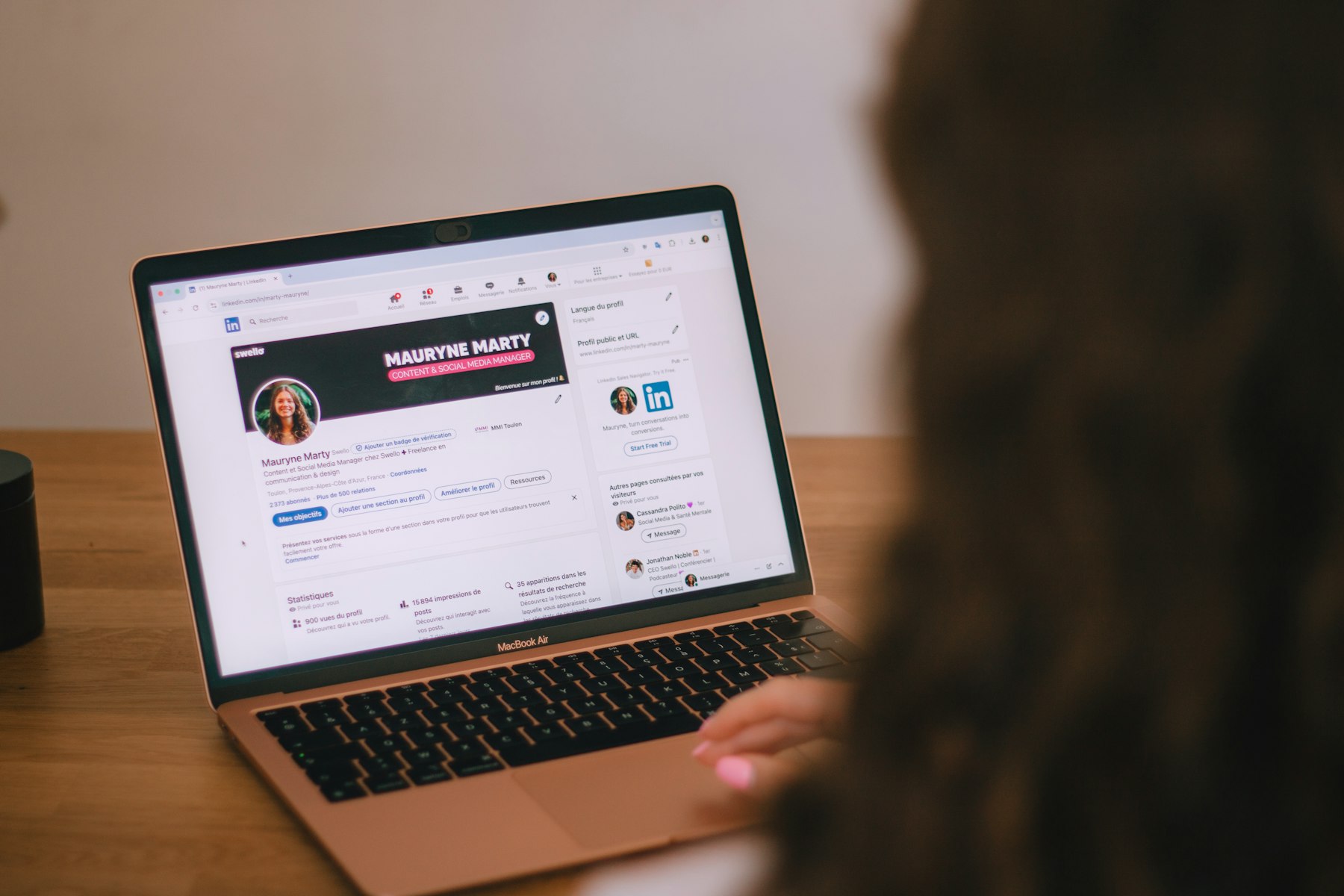
If you’re wondering how to add CV to LinkedIn, there are three ways to do it. You can upload it to the Featured section of your profile, where anyone viewing your profile can open it; save it privately in your job application settings, so it’s ready for Easy Apply; or upload it each time you apply for a job with Easy Apply. LinkedIn calls it a “resume” throughout, so look for that word rather than “CV”.
Below is how to add CV to LinkedIn step by step, which option suits which situation, and why the photo at the top of your profile does more work than most people realise.
How to add CV to LinkedIn: your three options at a glance
| Method | Who can see it | Best for |
|---|---|---|
| Featured section | Anyone who views your profile | Freelancers, contractors and people openly looking for work |
| Job application settings | Only employers you apply to | Applying to several jobs with Easy Apply |
| Upload during Easy Apply | Only that employer | Tailoring your CV to one specific role |
Whichever route you choose, save your CV as a PDF. It keeps your layout intact on every device. For anything you upload through Easy Apply or job application settings, career sites that track LinkedIn’s limits (Jobscan, October 2026; SocialRails, August 2026) give a maximum file size of 2MB, in Word or PDF format.

Option 1: Add your CV to the Featured section (public)
This puts your CV on your profile as a document anyone can click. On desktop:
- Click Me at the top of LinkedIn, then View profile.
- If you already have a Featured section, click the + icon in it. If not, click Add profile section under your headline, choose Recommended, then Add featured.
- Choose Add media and select your CV file.
- Give it a clear title, such as “Jane Smith, Marketing Manager CV”, add a short description if you like, and click Save.
In the LinkedIn app the steps are almost the same: go to your profile, scroll to Featured (or add the section), tap +, add media and pick the file from your phone or cloud storage.
Before you make your CV public
A Featured document can be opened and downloaded by anyone who can see your profile. Make a separate public version first and remove your home address and personal phone number. A professional email address and your LinkedIn URL are usually enough. Also think about your current employer: a public CV on your profile is not a subtle signal.
Option 2: Save your CV in job application settings (private)
This stores your CV privately so it’s ready whenever you use Easy Apply. Only the employers you apply to will see it.
- Click Me, then Settings & Privacy.
- Go to Data privacy and find Job application settings (you’ll see a “Resumes and application data” heading). You can also reach it from the Jobs tab via Preferences.
- Click Upload resume and choose your file.
From the same screen you can download or delete saved CVs. Several recent guides (SocialRails, Apply-Mate) report that LinkedIn keeps your four most recently uploaded CVs here, so delete old versions you no longer want to send.
Option 3: Upload your CV when you apply with Easy Apply
Jobs marked Easy Apply let you apply without leaving LinkedIn. During the application you’ll reach a resume step where you can pick a saved CV or upload a new one. Review your details and click Submit application.
Jobs with a plain Apply button send you to the employer’s own website instead, where you’ll follow their process. Either way, tailoring your CV to the job usually beats sending the same file everywhere.
What about “Save to PDF”?
Your profile has a More button with a Save to PDF option that turns your profile into a document. It’s handy as a quick record, but it isn’t designed like a CV and tends to run long, so most careers advisers suggest keeping a proper CV for applications.

Why recruiters look at your photo first
Your CV might be the most detailed thing on your profile, but it isn’t the first thing anyone sees. Your photo sits at the very top of your profile and travels with your name almost everywhere on LinkedIn: in search results, applicant lists, comments, messages and “People you may know”. Before a recruiter opens your CV, they’ve usually already seen your face.
Two well-known findings back this up, both a few years old now:
- When LinkedIn launched its photo editing tools in 2017, it said that simply having a profile photo leads to up to 21 times more profile views and 9 times more connection requests.
- TheLadders’ 2012 eye-tracking study of recruiters found they spent an average of 19% of their time on a LinkedIn profile looking at the photo, which the researchers saw as a distraction from the career details.
Put those together and the lesson is simple: have a photo, and make it one that does its job quickly and then lets people move on to your experience. A distracting photo (a cropped wedding guest, a holiday selfie, a dark or blurry shot) costs you attention that should go on your CV.
What makes a good LinkedIn photo
- Your face fills the frame. Head and shoulders, with your face taking up most of the circle.
- Soft, even light. Face a window or shoot outdoors in open shade. Avoid overhead lights that throw shadows under your eyes.
- A plain background. Something simple that doesn’t compete with you.
- Dress for the job you want. What you’d wear to an interview in your industry.
- It looks like you now. If someone would struggle to recognise you at an interview, it’s time for a new one.
- Upload a decent size. 400 x 400 pixels is the commonly recommended minimum, and larger square images give LinkedIn more to work with.
Want a headshot that matches your CV?
A phone and a window can get you a perfectly good profile photo. If you’d rather have one that looks polished and consistent with the rest of your personal brand, or you need photos for a whole team, that’s a service we offer at The Camera Guys across Suffolk, Essex and London.
Take a look at our headshot photography and corporate portraits and team photos, or read our guide to corporate photography for LinkedIn, websites and marketing. If you’re organising photos for a whole office, our advice on planning a company headshot day will save you time. When you’re ready, get in touch.
Frequently asked questions
Can I add a CV to LinkedIn on my phone?
Yes. In the app, go to your profile, find the Featured section, tap the plus icon, add media and choose your CV file. You can also upload a CV during an Easy Apply application.
Can recruiters see a CV I uploaded for Easy Apply?
Only the employer you sent it to can see it. CVs saved in job application settings stay private until you use them to apply.
What file format should my CV be for LinkedIn?
PDF is the safest choice because it keeps your formatting. Word files are also accepted. Keep files for applications under 2MB.
Should I put my CV on my LinkedIn profile publicly?
It can help if you’re freelance or openly job hunting. If you’re employed and searching quietly, use job application settings instead, and remove personal contact details from any public version.
Do I need a photo on LinkedIn?
You don’t have to have one, but LinkedIn’s own figures suggest profiles with a photo get many more views and connection requests, so it’s well worth adding a clear, recent one.