
How to Loop a YouTube Video for Event Screens and Exhibition Stands
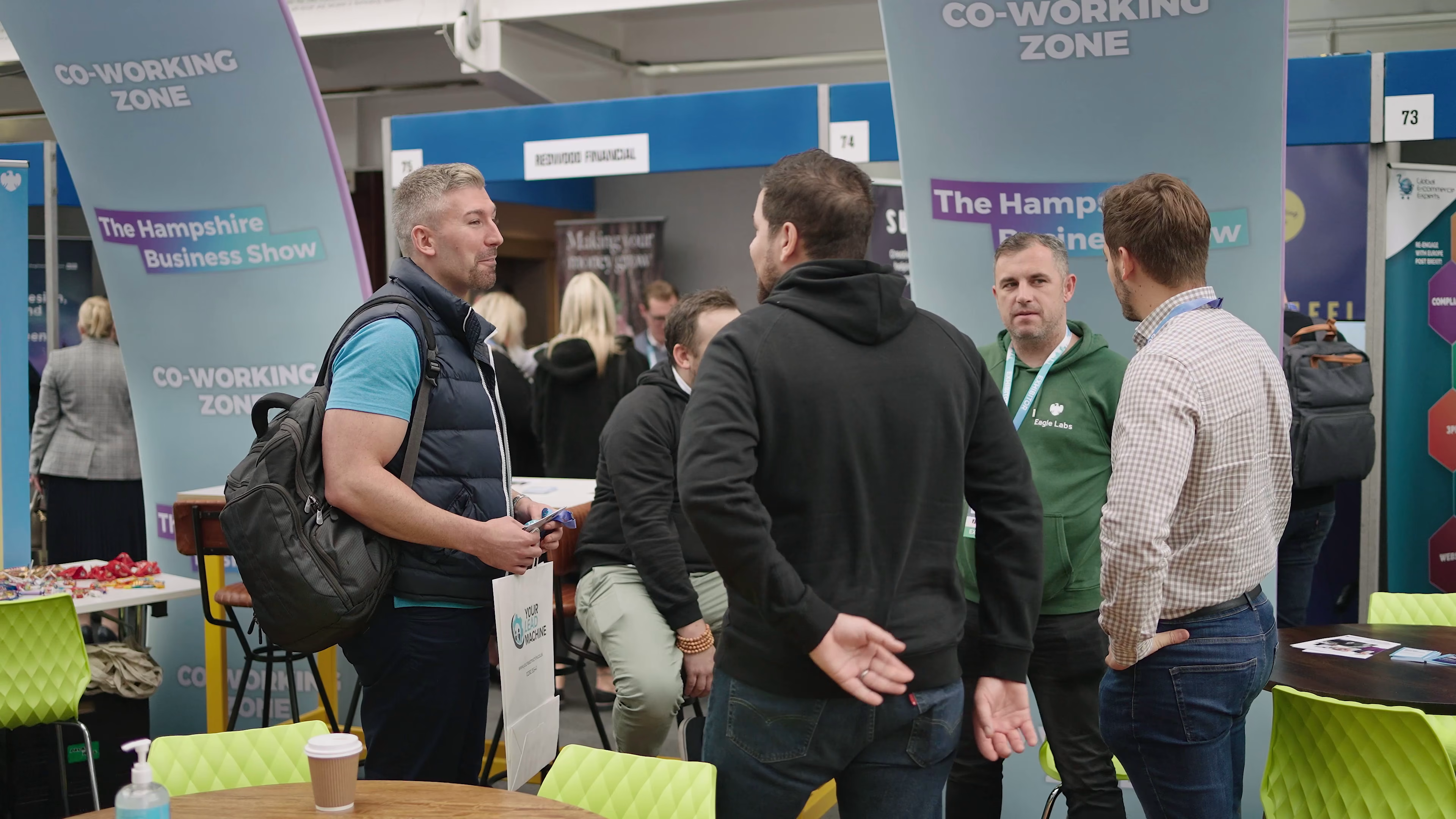
Here’s how to loop a YouTube video: on a computer, right-click the video and choose Loop. In the YouTube app, tap the gear icon, then Additional settings, and turn on Loop video. That’s fine at home. For an event screen or exhibition stand, though, a YouTube loop brings risks you don’t want in front of visitors: adverts, buffering, “up next” suggestions and YouTube’s own rules on public screening.
We film exhibitions, conferences and events, and we’re often asked to supply the video that ends up playing on the stand. This guide covers every way to loop a YouTube video, then explains the more reliable setup we’d recommend for anything the public will see.
How to loop a YouTube video on a computer
- Open the video on youtube.com in your browser.
- Right-click on the video itself (Control-click on a Mac). Right-clicking twice brings up the browser’s own menu, so do it once.
- Choose Loop from the menu. A tick appears next to it.
- To stop, right-click again and untick Loop.
The setting applies to that video while the page is open. If you refresh or open a new video, you’ll need to switch it on again.
Looping a playlist
If you want several videos to play in turn and then start again, put them in a playlist. Open the playlist, start playing it and click the loop icon (two arrows in a circle) in the playlist panel. One click loops the whole playlist; a second click loops just the current video.
How to loop a YouTube video on iPhone and Android
- Open the video in the YouTube app.
- Tap the video so the controls appear, then tap the gear icon (settings).
- Tap Additional settings.
- Turn on Loop video.
For playlists in the app, tap Play all, then use the loop icon under the player. If you’re watching in a phone browser rather than the app, switching to the desktop version of the site usually brings back the right-click style Loop option.
How to loop a YouTube video embedded on a website
If you’re embedding a video on your own site or a kiosk page, you can make it loop with player parameters. YouTube’s developer documentation says that to loop a single video you set loop=1 and also set playlist to the same video ID. The embed address looks like this:
https://www.youtube-nocookie.com/embed/VIDEO_ID?loop=1&playlist=VIDEO_ID&autoplay=1
Replace VIDEO_ID with the code after “v=” in the normal video address. A few things to know:
- Autoplay isn’t guaranteed. Most browsers block videos from playing with sound until someone interacts with the page, so you may need to click play once, or start the video muted.
- You can’t fully switch off related videos. Since 2018, the rel=0 setting only limits suggestions to videos from the same channel; it no longer hides them.
- controls=0 hides the player controls, which looks tidier on a display.
Should you loop YouTube on an event screen at all?
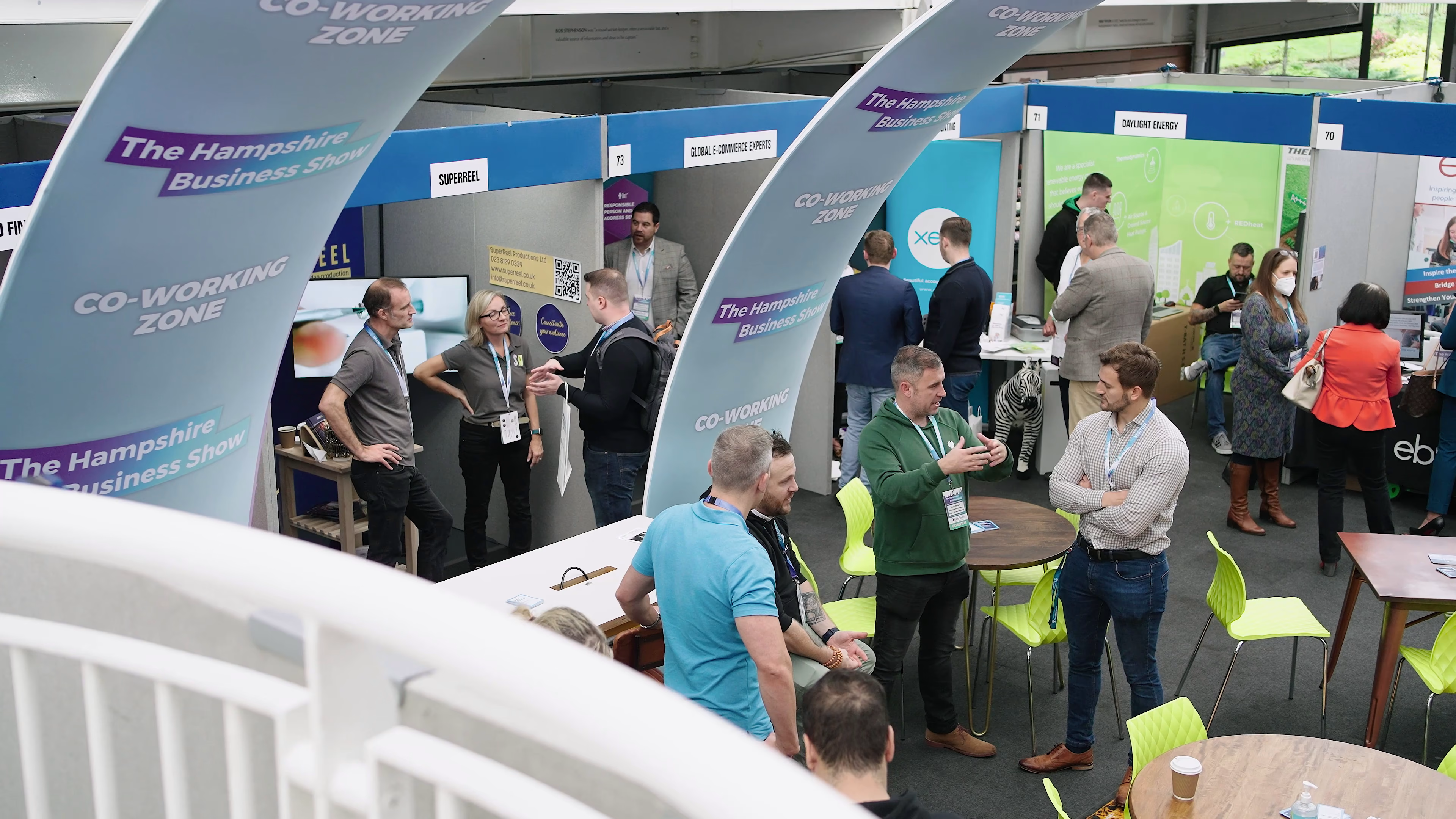
For a trade show, reception area or conference foyer, we’d steer you away from playing from YouTube. There are practical and rule-based reasons.
YouTube’s terms
YouTube’s Terms of Service (effective 17 March 2025) allow you to view content for your “personal, non-commercial use” and say you may not “publicly screen videos” from the service, although you may show videos through the embeddable YouTube player. Where a public stand screen fits in those terms isn’t something a quick read settles, so if you’re relying on it, check the current terms yourself. Using your own video file avoids the question entirely.
The practical problems
- Adverts. Ads can appear before or during videos, and you can’t control which brands show up on your stand.
- Wi-Fi. Exhibition hall Wi-Fi is often slow or shared by hundreds of exhibitors. A buffering wheel looks worse than a blank screen.
- Pop-ups and suggestions. End screens, cards, “up next” thumbnails and sign-in prompts can all appear on a looping video.
- Screen sleep and updates. Laptops dim, lock or decide to install updates halfway through the day.
Music licensing
If your video has commercially released music, it’s being played in public. For exhibitions, PPL PRS says the organiser is responsible for getting TheMusicLicence, and that it covers music on individual stands, including video. Organisers may ask at booking whether you plan to play music, so tell them. Videos with properly licensed production music, or no music at all, keep things simple.
The better way: loop your own video file
If the video is yours, you already have (or can get) the original file. Playing it locally is more reliable than any stream.
| Setup | How to loop it | Good for |
|---|---|---|
| USB stick in the screen | Most TVs and commercial displays have a built-in media player with a repeat option | Simple stands, one video |
| Laptop with VLC | Open the file, then switch on Loop (or Repeat) in the playback controls; full-screen it | Several videos in a playlist |
| Media player box or stick | Load the files, set the playlist to repeat | All-day running with no laptop on show |
| Digital signage player | Schedule content and loops from the software | Multiple screens or regular events |
Our checklist for a stand screen video
- Test the exact file on the exact screen before the day. Some built-in players are fussy about formats; an MP4 with H.264 video is the safest bet.
- Design for no sound. Halls are loud. Use captions and on-screen text so the message lands with the sound off.
- Keep the loop short. Visitors walk past in seconds. A punchy one to two minute loop that makes sense from any point works better than a long brand film.
- Make the join invisible. End on a frame that cuts cleanly back to the start, or fade to your logo.
- Match the screen shape. A portrait totem or a wide LED wall needs its own version, not a stretched 16:9 file.
- Turn off sleep settings on any laptop or player, and bring a spare USB with the file on it.
Getting the right video for your event screen
A looping stand video is a different job from a YouTube upload. It needs to work silently, catch people in passing and fit the screen you’ve hired. We make exhibition videos and event highlight films, and our video repurposing service can cut an existing film into a short, captioned loop in the right shape and file format for your display.
If you’re planning ahead, filming this year’s show gives you next year’s stand content too, as we explain in how to turn one event into weeks of video content. See our pricing or get in touch about your next event.
Frequently asked questions
Why is there no Loop option when I right-click a YouTube video?
Make sure you right-click on the video itself, and only once; a second right-click opens the browser menu instead. On a phone browser, switch to the desktop site or use the YouTube app’s settings instead.
Can I loop just part of a YouTube video?
YouTube’s built-in loop repeats the whole video. Looping a section needs a browser extension or a third-party site. For an event screen, it’s far simpler to trim your own file to the section you want and loop that.
Will a looped YouTube video show adverts?
It can. Ads may appear before or during videos, and you can’t choose which ones. That’s one of the main reasons we recommend playing your own file on a stand screen.
How do I make an embedded YouTube video loop?
Add loop=1 to the embed address and set the playlist parameter to the same video ID, for example ?loop=1&playlist=VIDEO_ID. Without the playlist parameter, a single video won’t loop.
What file format should a stand screen video be?
An MP4 file with H.264 video plays on almost any TV, display or media player. Test it on the actual screen beforehand, and bring a backup copy on a second USB stick.