
How to Use Zoom Like a Pro: Look and Sound Better on Every Call
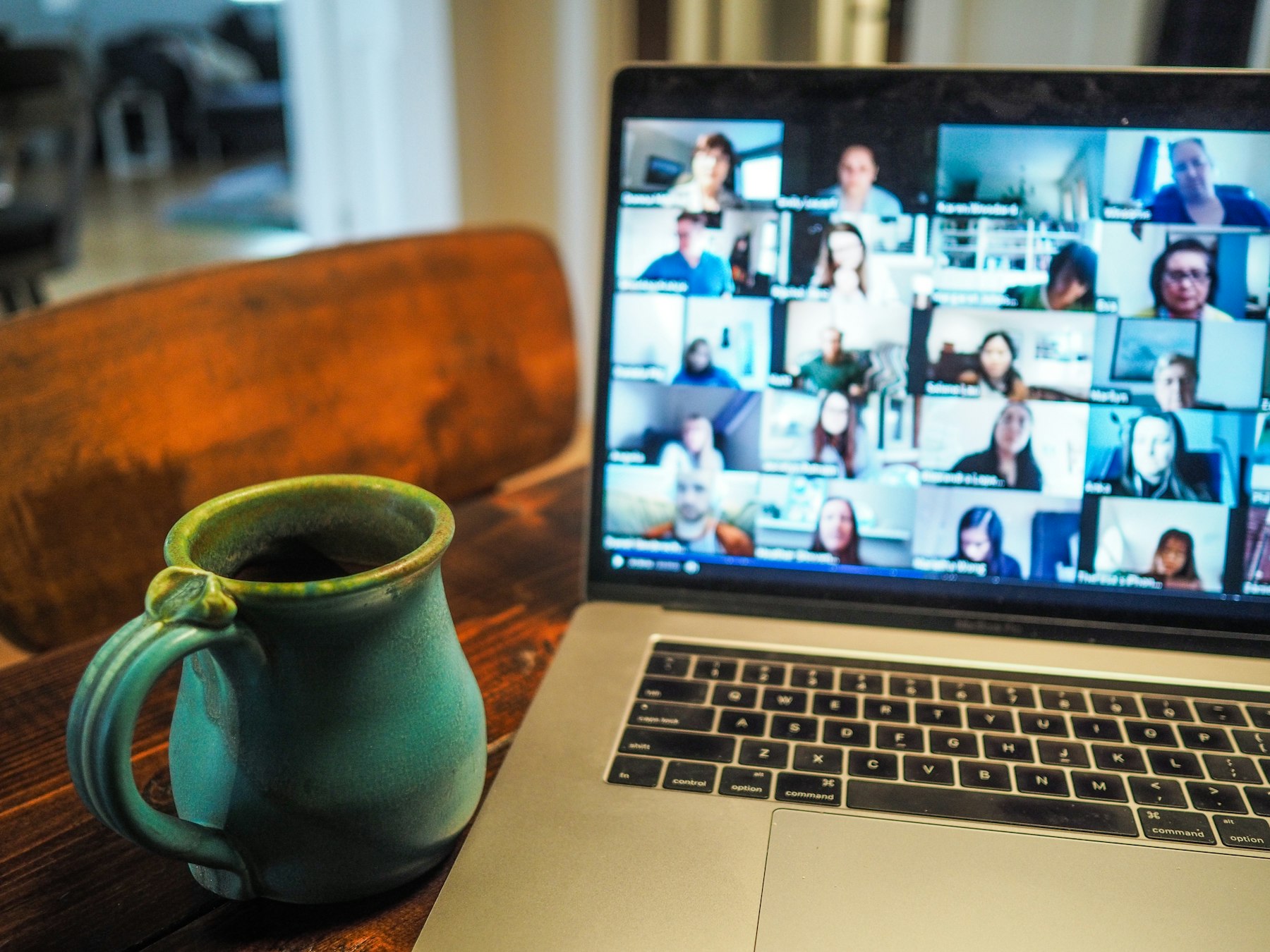
Learning how to use Zoom well comes down to three things: a camera at eye level with light on your face, a microphone that’s close to you, and a few settings switched on before the call starts. Joining, muting and sharing your screen take minutes to learn. Looking and sounding professional takes a little more thought, and that’s what most guides skip.
We set up cameras, lights and microphones for a living, including live streams and webinars for businesses across Suffolk, Essex and London. This guide covers the Zoom settings worth changing in 2026, plus the simple kit and setup habits that make far more difference than any filter.
How to use Zoom: the basics in five minutes
If you’re brand new, here’s the short version. Zoom’s main desktop app is now called Zoom Workplace, and it covers meetings, chat and more. You can also join from a web browser or the mobile app.
- Install the app and sign in. Download Zoom Workplace from zoom.com. You can join meetings without an account, but signing in gives you access to your settings.
- Join a meeting. Click the invite link, or open the app and enter the meeting ID and passcode.
- Check your audio and video before joining. The preview screen lets you see yourself and pick your microphone and camera. Use it every time.
- Use the toolbar. Mute, video, share screen, chat and reactions sit along the bottom. Zoom redesigned the toolbar in late 2025 so it shows the most-used controls, with the rest under More.
- Leave or end. Hosts can end the meeting for everyone; participants just leave.
Worth knowing: on Zoom’s free Basic plan, meetings are limited to 40 minutes. If you regularly run longer calls, you’ll need a paid plan.
The Zoom settings worth changing before your next call
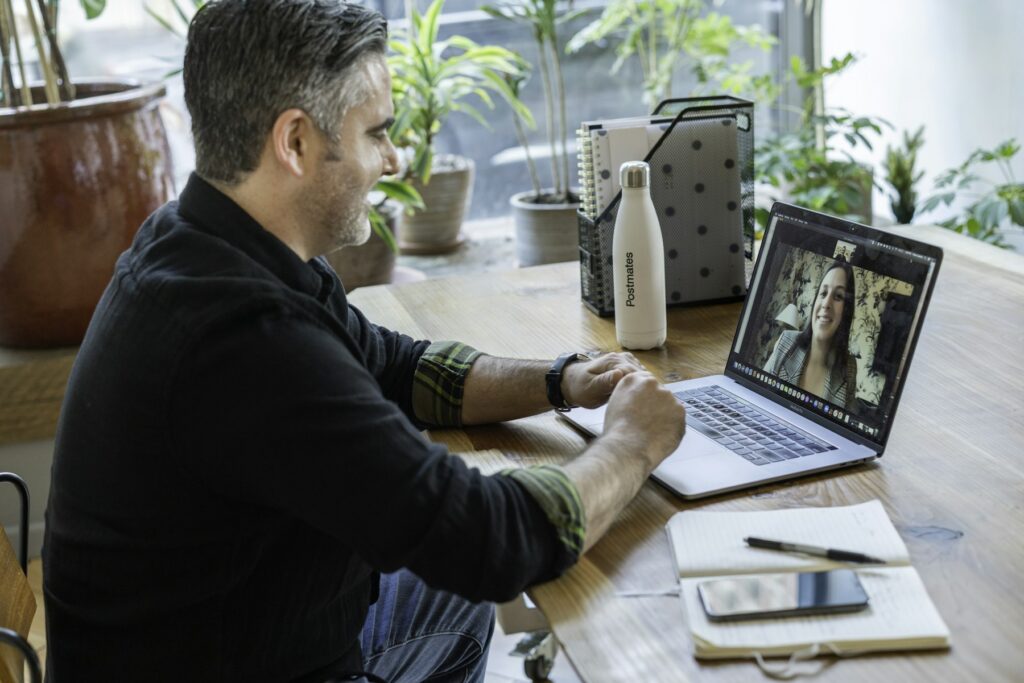
Open Settings by clicking your profile picture, then Settings (newer versions also have a gear icon in the navigation bar). During a meeting, click the small arrow next to the video button to reach your video settings. The labels below are from Zoom’s current desktop app. Names can shift slightly between versions, so use the search bar in Settings if something has moved.
Video & effects tab
| Setting | What it does | Our advice |
|---|---|---|
| HD | Sends a higher-resolution picture when your connection allows | Turn on. Zoom may still scale down on a weak connection |
| Touch up my appearance | Softens skin with an adjustable slider | Keep it subtle. Too much looks like a beauty filter |
| Adjust for low light | Brightens a dim picture | Useful as a backup, but adds noise. Real light is better |
| Portrait lighting | Simulates light on your face | Try it, but check it looks natural before an important call |
| Auto-framing | Keeps you centred in the frame | Handy if you move around; turn off if it hunts |
| Mirror my video preview | Flips only your own preview | Leave on. Others still see you the right way round |
| Backgrounds (None / Blur) | Blurs or replaces what’s behind you | Blur beats a fake background. A tidy real room beats both |
Audio tab
- Automatically adjust microphone volume: leave this on for normal meetings. Turn it off only if you’re using a good external microphone and setting levels yourself.
- Noise removal: the default microphone mode, which filters out typing, traffic and the dog. Right for most calls.
- Personalized audio isolation: focuses on your voice and suppresses other people talking nearby. Good for shared offices or busy homes.
- Original sound for musicians: switches off Zoom’s processing. Only use it for music or if you have a properly treated room and a quality mic, because it lets every background noise through.
- Test microphone and Test speaker: run both before any call that matters.
Also worth turning on: the option to press and hold the spacebar to temporarily unmute. It’s the fastest way to speak briefly and go back on mute.
How to look better on Zoom
Settings help, but the biggest improvements come from where your camera is and where your light comes from.
Raise the camera to eye level
A laptop on a desk films you from below: up the nose, ceiling behind. Put the laptop on a stand or a pile of books so the lens is level with your eyes, about an arm’s length away. Frame yourself from mid-chest up, with a little space above your head.
Face the light
Sit facing a window rather than with your back to it. A bright window behind you turns you into a silhouette, and no setting fully fixes that. If daylight isn’t an option, a soft light placed just behind and above your camera makes an enormous difference. Avoid overhead lights on their own, which cast shadows under your eyes.
Think about your background
A simple, tidy background with some depth looks more professional than a virtual one. A bookshelf, a plant or a lamp a few feet behind you works well. If you can’t control the room, background blur is the next best thing.
Look at the lens when it matters
Looking at people’s faces on screen means you’re looking slightly away from the camera. When you’re making a key point or presenting, look at the lens. Moving the Zoom window to the top of your screen, near the camera, helps.
Upgrade the camera if you’re on calls all day
A decent external webcam is a sensible upgrade from a built-in laptop camera. For regular presenters, some people use a proper camera connected through a capture device or a camera’s own webcam software. Either way, lighting still matters more than the camera.
How to sound better on Zoom
People will forgive a slightly soft picture. They won’t forgive audio they can’t follow. We’ve written about why professional audio matters more than you think, and it applies to video calls too.
- Get the microphone closer. Distance is the enemy. A headset, a USB microphone on the desk or a small clip-on mic will beat your laptop’s built-in mic almost every time.
- Wear headphones. They stop your speakers feeding back into your microphone, which causes echo for everyone else.
- Soften the room. Bare walls and hard floors make you sound hollow. Curtains, a rug, a sofa or a bookshelf all help.
- Use a wired connection where you can. An Ethernet cable is generally steadier than Wi-Fi, and dropouts hurt audio first.
- Mute when you’re not speaking in larger meetings, and learn the shortcut: Alt+A on Windows, Command+Shift+A on Mac. Alt+V or Command+Shift+V turns your video on and off.
Pro habits for hosting and presenting
- Join a few minutes early to check your picture, sound and screen share.
- Share a single window, not your whole screen, so notifications and other tabs stay private.
- Turn off notifications on your computer before presenting.
- Have a plan B. Keep the dial-in details or the mobile app ready in case your computer misbehaves.
- Tell people if you’re recording, and check your organisation’s policy on recordings and AI note-taking before you switch either on.
- Use a second screen if you have one: slides on one, participants and chat on the other.
When a Zoom call becomes a production
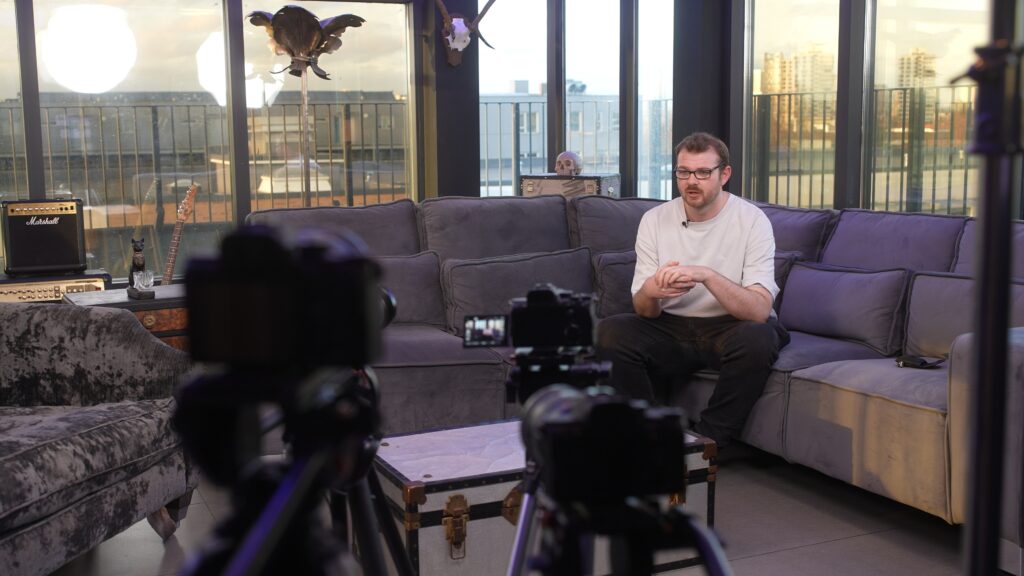
Everything above is about getting a single person looking and sounding good. Webinars, product launches, AGMs, conferences and hybrid events are a different job. You might need several cameras, presenters in a room and online, graphics, slides, remote guests and a reliable stream to Zoom, YouTube or another platform, all at once.
That’s where our live streaming team comes in. We run webinar and presentation streaming and full hybrid event production across East Anglia and London, handling cameras, sound, vision mixing and the connection so your speakers can concentrate on speaking. If you’d rather run it yourself, we also offer livestream equipment hire. See our pricing or tell us about your event.
Frequently asked questions
How do I make myself look better on Zoom?
Raise your camera to eye level, sit facing a window or soft light, and tidy what’s behind you. Then turn on HD and, if you like, a light setting of Touch up my appearance in the Video & effects settings.
Why do I sound echoey on Zoom?
Usually because your microphone is far away in a room with hard surfaces, or your speakers are feeding back into it. Wear headphones, move the mic closer and add soft furnishings.
Should I use a virtual background?
Only if your real background is a problem. Virtual backgrounds can cut off hair and hands when you move. Background blur is more forgiving, and a tidy real room looks best of all.
Is Zoom free to use?
There’s a free Basic plan, but meetings are limited to 40 minutes. Paid plans remove that limit and add extra features.
Can you stream a live event into Zoom professionally?
Yes. A production team can feed multiple cameras, microphones and slides into Zoom as if they were a single high-quality webcam, so remote viewers get a properly produced picture.