
How to Speed Up a Video on iPhone (and Slow It Down Again) in 3 Taps
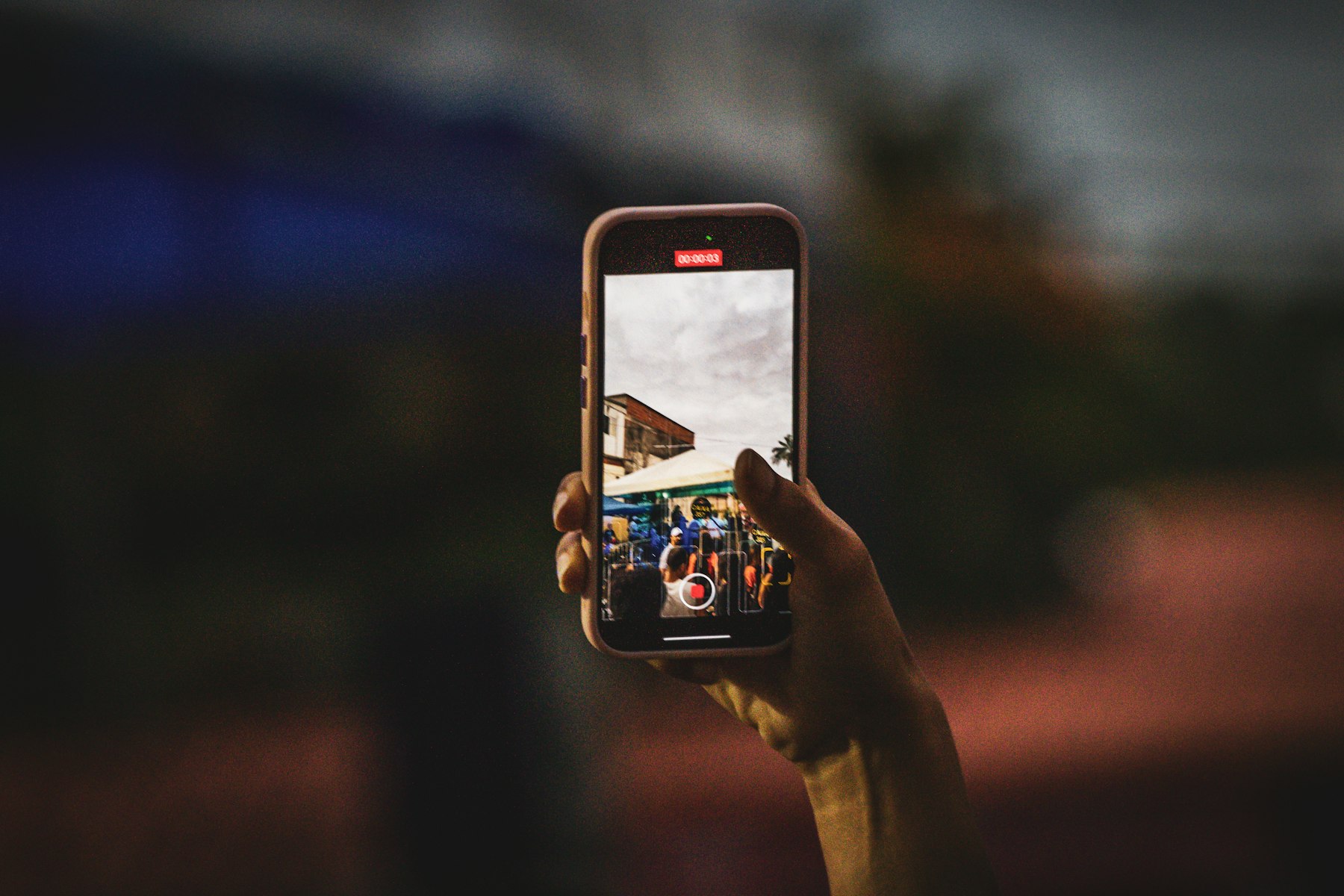
Here’s how to speed up a video on iPhone: open Apple’s free iMovie app, add your clip to a new Movie project, then tap the clip, tap the Speed button and drag the slider towards the hare. That’s the three taps. iMovie lets you play a clip at up to twice its normal speed, or slow it down to one-eighth, and then save the result straight back to your Photos library.
The built-in Photos app can’t change the speed of a normal video, which catches a lot of people out. It can only adjust videos you shot in Slo-mo. Below we walk through both, plus the tricks we use when 2x isn’t fast enough or slow motion looks jerky.
Can you change video speed in the Photos app?
Only for Slo-mo videos. If you filmed in the Camera app’s Slo-mo mode, Photos lets you choose which part plays slowly, or turn the whole thing back to normal speed:
- Open Photos and find the video (the Slo-mo album under Media Types is the quickest route).
- Tap Edit.
- Below the frame viewer you’ll see a strip of vertical lines. Where they’re spaced widely, the video plays slowly; where they’re tight together, it plays at normal speed.
- Drag the handles to change where the slow section starts and ends. Drag them together until all the lines are evenly spaced and the clip plays at normal speed throughout.
- Tap Done.
The change is non-destructive, so you can go back into Edit later and reset it. For an ordinary video, though, Photos has no speed control. That’s where iMovie comes in.
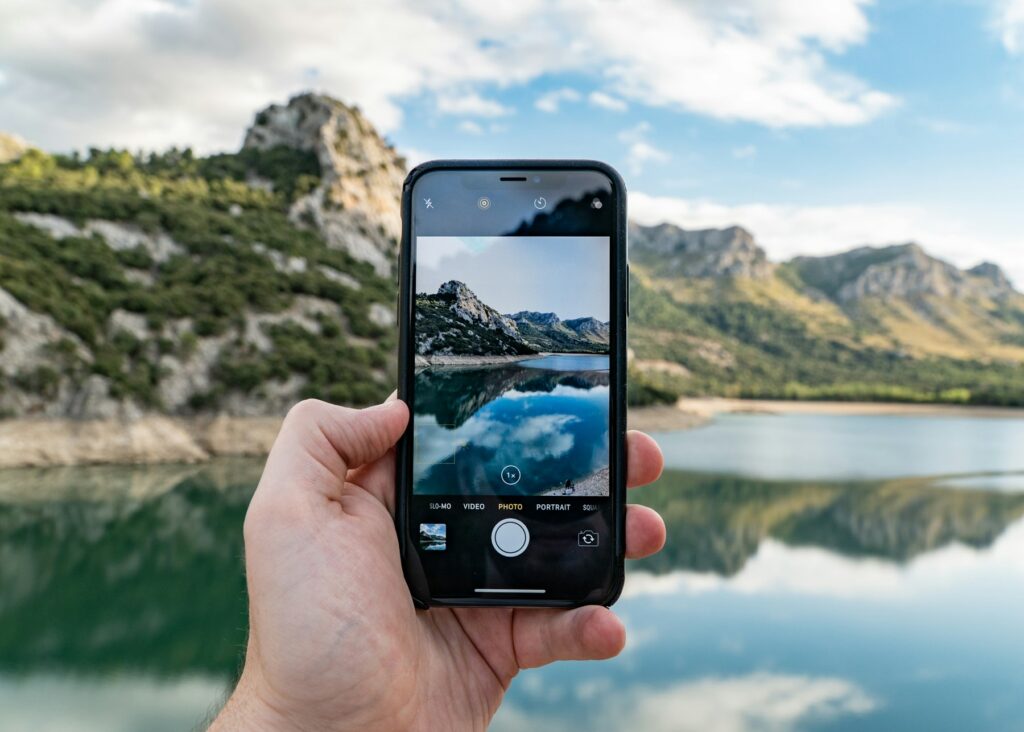
How to speed up a video on iPhone with iMovie, step by step
iMovie is made by Apple and free on the App Store. If it isn’t already on your phone, download it first. Then:
- Open iMovie and start a new Movie project.
- Choose the video (or videos) you want, then tap Create Movie. Your clip appears on the timeline.
- Tap 1: tap the clip on the timeline so it’s highlighted with a yellow border.
- Tap 2: tap the Speed button (the speedometer icon) in the toolbar at the bottom.
- Tap 3: drag the slider right, towards the hare, to speed it up. The speed shows as a number such as 2x.
- Tap Done, then the share button, and choose Save Video. Pick a resolution and iMovie exports the sped-up version to Photos.
Your original clip isn’t changed, so you can always start again. If you’re using iMovie’s newer Storyboard or Magic Movie projects, the Speed button is there too: tap the clip, tap the edit arrow, then tap the clip again to find it.
Speeding up only part of a clip
Often you only want the boring middle bit faster. In a Movie project, move the playhead to where the fast section should start and use the Split option (under the scissors icon) to cut the clip there. Do the same where it should end. Now you have three clips, and you can change the speed of just the middle one.
How to slow a video down again on iPhone
It’s the same slider in iMovie, dragged the other way. Move it left, towards the tortoise, and you can slow a clip down to one-eighth of its original speed. Drag it back to 1x, or tap the reset option, to undo a speed change you no longer want.
There’s a catch. Slowing down normal footage stretches the frames you have, so a video shot at 30 frames per second will start to look stuttery once you slow it much below half speed. For smooth slow motion, you need to shoot more frames in the first place:
- Use the Slo-mo mode in the Camera app. Go to Settings > Camera > Record Slo-mo to choose 120 or 240 frames per second, depending on your iPhone.
- Film in good light. High frame rates need more light, and dim slow-motion footage gets noisy quickly.
- Keep slow-motion shots short. A few seconds of slowed-down action is more effective than half a minute.
Quick reference: which tool does what
| Tool | Speed up | Slow down | Best for |
|---|---|---|---|
| Photos app | Only by removing Slo-mo | Only on Slo-mo videos | Adjusting where a Slo-mo clip goes slow |
| iMovie (free) | Up to 2x | Down to 1/8x | Any video, part of a clip, adding music |
| Camera app Time-lapse | Much faster, set while filming | No | Sunsets, crowds, builds and long events |
| Camera app Slo-mo | No | Yes, set while filming | Smooth slow motion of fast action |
| Third-party editors (such as CapCut) | Yes | Yes | Speed ramps and social-first edits |
What if 2x isn’t fast enough?
iMovie tops out at twice normal speed. You have a few options if you need something much quicker.
Run it through iMovie twice
Save the 2x version to Photos, start a new iMovie project with that saved video, and speed it up to 2x again. You now have a clip at four times the original speed. It’s a bit clunky, and every export slightly lowers the quality, but it works with nothing more than free Apple tools.
Shoot a time-lapse instead
If you know in advance that you’ll want something dramatically sped up, such as a sunset, a stand being built at an exhibition or a room filling up before a talk, use the Camera app’s Time-lapse mode. The iPhone captures frames at intervals and picks the speed for you, so a long recording plays back in a short clip. Put the phone on a tripod or prop it against something solid; any movement shows up as a jerky, shaky result.
Use a third-party editor
Apps such as CapCut offer higher speeds and “speed ramps”, where a clip smoothly speeds up and slows down within a single shot. They’re popular for Reels and TikToks. Check each app’s terms and privacy policy before using it for business content, especially if footage includes clients or staff.
Tips for speed changes that look deliberate
- Watch the sound. Speeding up a clip speeds up its audio too, so voices sound squeaky and slowed clips sound like a drawl. Mute the clip’s own audio and add music or a voiceover instead.
- Hold the phone steady. Any wobble is exaggerated when footage is sped up. Lean on something, use both hands or use a small tripod.
- Have a reason. Speed up travel, setup and repetitive tasks; slow down the moment that matters, such as a first dance spin, a product reveal or a splash.
- Don’t overdo it. One or two speed changes in a short video feel intentional. Ten feel like a gimmick.
- Export at the highest quality you can. Especially if you plan to run a clip through iMovie twice.
When to hand your footage to an editor
Phone tools are great for a quick social clip. When a video represents your business, the details start to matter: smooth speed ramps, sound that’s been cleaned up, colour that matches across shots, and captions and crops for each platform. That’s day-to-day work for our video editing team, and we also offer a dedicated social and short-form video editing service for businesses that film on their phones and want it turned into polished posts.
If you’re planning to film a lot of content at once, our guide on planning a batch short-form video day is a good next read. You can see typical costs on our pricing page, or get in touch with what you’ve got.
Frequently asked questions
Is there a way to speed up a video on iPhone without an app?
Not for a normal video. The Photos app only changes the speed of videos shot in Slo-mo. For anything else you’ll need iMovie, which is free from Apple, or another editing app.
How fast can iMovie speed up a video on iPhone?
Up to 2x normal speed, and it can slow clips down to one-eighth. For faster results, export the 2x clip and speed it up again in a new project, or shoot in Time-lapse mode.
Why does my slowed-down video look choppy?
Because it was filmed at a normal frame rate, so there aren’t enough frames to fill the extra time. Shoot in Slo-mo mode at 120 or 240 frames per second for smooth slow motion.
Does speeding up a video lower the quality?
A single speed change and export in iMovie keeps the quality close to the original if you choose a high resolution when saving. Repeated exports gradually reduce it.
Can I turn a Slo-mo video back to normal speed?
Yes. In Photos, tap Edit and drag the handles on the speed strip together until all the lines are evenly spaced, then tap Done.