
How to Install WordPress in 15 Minutes (and the Settings Everyone Forgets)
The quickest way to learn how to install WordPress is to use your hosting company’s one-click installer: pick your domain, choose an admin username and a strong password, and the host creates the database and files for you in a few minutes. If your host doesn’t offer one, a manual install takes about the same time once you know the steps. Either way, the part most people skip is what happens next: the settings and security checks that stop a new site causing problems later.
We build and look after websites as well as making video and photography for them, so we see a lot of new installs. Here’s the process from start to finish.
What you need before you start
WordPress itself is free from WordPress.org. What you need is somewhere to run it. Check that you have:
- A domain name pointed at your hosting.
- Web hosting that meets the current requirements. WordPress.org recommends PHP 8.3 or newer, MySQL 8.0 or newer (or MariaDB 10.11 or newer) and HTTPS support. Older setups may still run WordPress, but those versions are end of life and can leave your site exposed.
- An SSL certificate so the site loads over https. Most hosts provide a free one; switch it on before you install so WordPress uses the secure address from day one.
- An email address you check, which becomes the admin email for password resets and update notices.
Ask your host if you’re not sure about PHP or database versions. They can usually change the PHP version from the control panel.
Option 1: how to install WordPress with a one-click installer
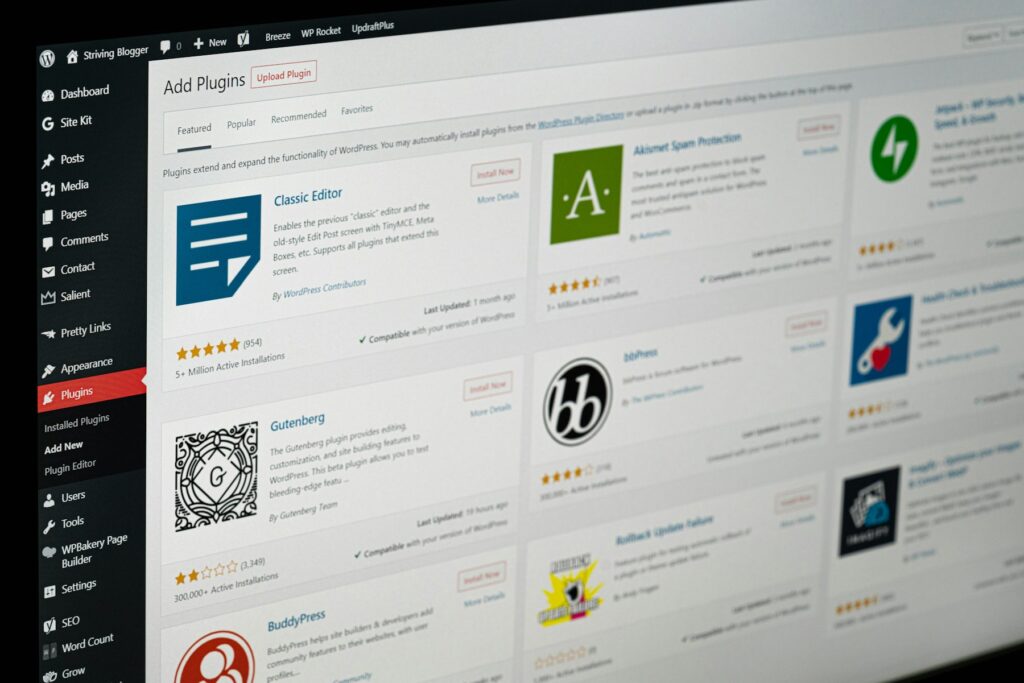
Most UK and international hosts include an installer in their control panel. It might be branded as Softaculous, Installatron or the host’s own “WordPress” button, but the steps are almost identical:
- Log in to your hosting control panel and find the WordPress installer.
- Choose the domain and make sure the protocol is https.
- Leave the directory blank if you want the site at your main address (example.co.uk) rather than in a folder (example.co.uk/wp).
- Enter your site title. You can change it later.
- Choose an admin username. Avoid “admin” or your business name; pick something that isn’t public.
- Set a long, unique password and use your real email address.
- Skip any bundled extra plugins or themes you didn’t ask for.
- Click install, wait a minute or two, then log in at yourdomain.co.uk/wp-admin.
That’s it. Jump to the settings section below.
Option 2: a manual WordPress install
A manual install gives you full control and is useful if your host has no installer. The official WordPress documentation describes it as taking under five minutes once everything is ready.
1. Download WordPress
Download the latest version from wordpress.org/download and unzip it on your computer.
2. Create a database and user
In your hosting control panel (or phpMyAdmin), create a new MySQL or MariaDB database and a database user, and give that user full privileges on the database. Note down the database name, username, password and host. The host is usually “localhost”, but some providers use a different address.
3. Upload the files
Upload the contents of the unzipped WordPress folder to your web root (often called public_html) using your host’s file manager or an FTP/SFTP program. Upload the contents, not the folder itself, unless you want the site in a subfolder.
4. Run the installer
Visit your domain in a browser. WordPress will ask for your language, then your database details, and create the wp-config.php file for you. If it can’t write the file, you can rename wp-config-sample.php to wp-config.php and add the details yourself.
5. Set up your site
The final screen asks for a site title, admin username, password, email address and whether to discourage search engines from indexing the site. Fill these in, click Install WordPress and log in.
The settings everyone forgets after installing WordPress
A fresh install works, but it isn’t ready. These are the settings we find left on their defaults again and again:
| Where | What to change | Why it matters |
|---|---|---|
| Settings > General | Site title, tagline and timezone (set it to London) | The tagline often shows in search results and themes; the wrong timezone makes scheduled posts go out at the wrong time |
| Settings > General | WordPress Address and Site Address both start with https | Avoids mixed-content warnings and duplicate versions of your site |
| Settings > Permalinks | Choose “Post name” | Gives clean, readable addresses like /about-us/ instead of /?p=123. Set this before you publish anything |
| Settings > Reading | Search engine visibility | If you ticked “Discourage search engines” while building, untick it at launch, or Google is asked not to index your site |
| Settings > Discussion | Turn off comments if you don’t need them | Open comments on a business site mostly attract spam |
| Posts, Pages and Plugins | Delete the sample post, sample page and any plugins you won’t use | “Hello world!” left live looks unfinished, and unused plugins are clutter |
| Appearance > Themes | Keep your active theme and one default theme; delete the rest | Fewer things to update; the default theme is a fallback if yours breaks |
| Users > Profile | Set a display name | Otherwise your login username can appear as the author name on posts |
| Settings > Privacy | Create or select a privacy policy page | UK GDPR means most business sites that collect data need one |
How to secure a new WordPress install
WordPress is safe when it’s looked after. Most problems we see come from weak logins, out-of-date software or too many plugins. Do these on day one:
- Use strong, unique passwords. A password manager makes this painless. Use different passwords for WordPress, your hosting account, the database and FTP.
- Turn on two-factor authentication (2FA). WordPress doesn’t include it out of the box, but a plugin adds it. The free Two Factor plugin, developed by WordPress contributors, supports authenticator apps, email codes and backup codes. Turn on 2FA for your hosting account too.
- Keep everything updated. WordPress installs minor maintenance and security releases automatically by default. Plugins and themes are different: you can switch on auto-updates for each one from the Plugins and Themes screens, or check for updates every week.
- Keep plugins to a minimum. Every plugin is more code that needs updating and can contain a vulnerability. Only install what you need, choose plugins that are actively maintained and delete (not just deactivate) the ones you stop using.
- Give people only the access they need. Not everyone who writes blog posts needs to be an Administrator. The Editor or Author roles are usually enough.
- Set up backups. Check whether your host backs up your files and database, how often, and how to restore. WordPress’s own documentation recommends backing up before updates, and checking the backups actually work.
What to do next
With WordPress installed, configured and locked down, you can choose a theme, build your key pages (home, about, services, contact) and start adding content. Before you get too far, plan what your visitors need to see and do, because changing the structure later is far harder than getting it right at the start.
Want a website that’s built properly from the start?
Installing WordPress is the easy part. Designing a site that loads quickly, ranks well and turns visitors into enquiries is where most of the work goes. We design and build websites for businesses alongside the photography and video that make them stand out. See how we approached a recent website redesign for CJC Contracts, read why good photography matters for your business website and how to use video on your company’s website, then get in touch to talk about your project. You can also check our pricing.
Frequently asked questions
Is WordPress free to install?
Yes. The WordPress software from WordPress.org is free and open source. You pay for your domain name and hosting, plus any premium themes or plugins you choose to buy.
What’s the difference between WordPress.org and WordPress.com?
WordPress.org provides the free software you install on your own hosting, which is what this guide covers. WordPress.com is a hosted service that runs WordPress for you, with plans that set what you can and can’t install.
How long does it take to install WordPress?
A one-click install takes a few minutes. A manual install usually takes 10 to 15 minutes, and going through the settings and security steps in this guide adds a little more.
Do I need to know how to code to install WordPress?
No. A one-click installer needs no technical knowledge, and a manual install only involves uploading files and filling in a few details. Coding only comes in if you want to customise a theme heavily.
Should I install WordPress on my main domain or a subfolder?
For most business sites, install it on the main domain so your home page is the WordPress site. Use a subfolder only if WordPress is running a separate section, such as a blog, alongside another system.